
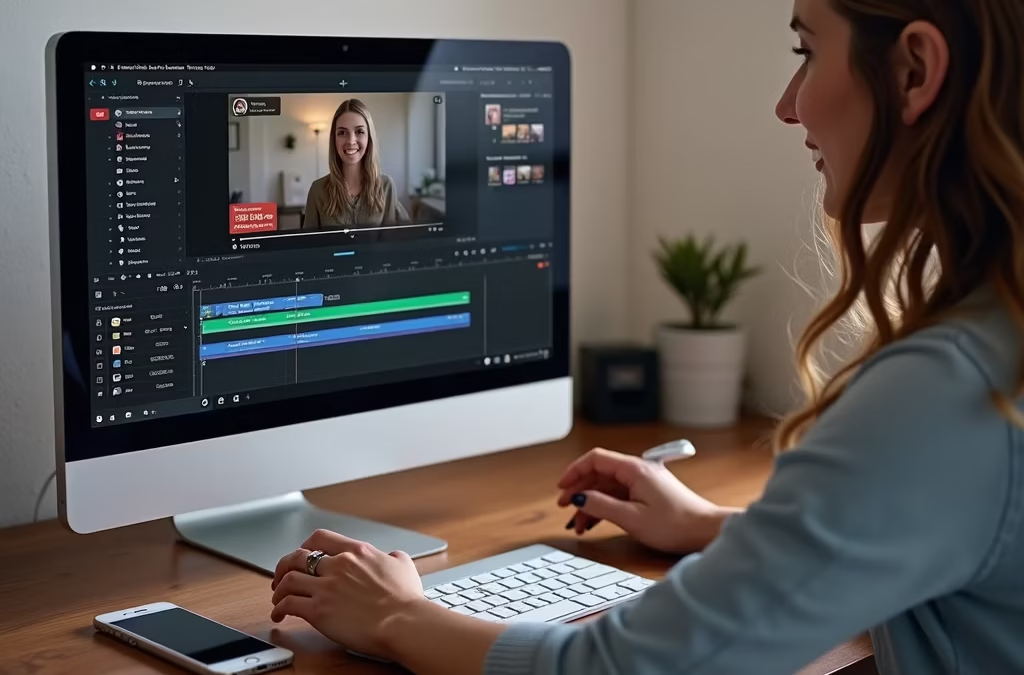
Are you an aspiring content creator looking to enhance your YouTube presence? Or perhaps you've already started a channel and want to refine your skills? This beginner's guide is designed to help you learn how to edit YouTube videos, transforming your raw footage into engaging and high-quality video content.
Getting Started with Editing YouTube Videos
Understanding the Basics of Video Editing
Embarking on your journey to edit YouTube videos starts with grasping the fundamental basics of video editing. This involves familiarizing yourself with concepts like sequencing clips, understanding how to effectively cut footage, and the importance of good audio. A solid foundation in these areas will empower you to create compelling YouTube video content, making your first video truly shine and attracting viewers to your channel.
Choosing the Right Editing Software
Selecting the appropriate video editing software is a pivotal step for any aspiring YouTube editor. For those serious about their craft, professional tools offer extensive features, while beginners might consider free options to start editing without an initial investment.
| User Level | Recommended Software |
|---|---|
| Professional / Serious | Adobe Premiere Pro, Final Cut Pro (for Mac users) |
| Beginner / Free Options | DaVinci Resolve (free version), simpler free video editing software for YouTube |
Setting Up Your YouTube Studio
Beyond just the software, setting up your YouTube studio involves optimizing your recording environment to ensure high-quality video production. A well-organized studio not only makes the recording process smoother but also contributes significantly to the overall professional look and feel of your final video content. To achieve this, you need to consider several key elements:
- Your lighting and background
- Your audio setup, as clear sound is paramount for any YouTube video
Steps to Edit Your First YouTube Video
Importing Your Video Clips
The initial phase of editing your YouTube video involves importing your video clips into your chosen video editing software. Whether you are using Adobe Premiere Pro, Final Cut Pro, or DaVinci Resolve, the process typically involves dragging your raw footage directly into the media bin. This essential step ensures all your recorded video content is accessible for the subsequent editing stages, laying the groundwork for your first video.
Cutting and Trimming Your Footage
Once your clips are imported, the next crucial step is cutting and trimming your footage. This involves removing unnecessary parts, tightening up your shots, and creating a smooth narrative flow for your YouTube video. Using the editing software’s tools, you can easily cut out awkward pauses or mistakes, ensuring your final video is concise and engaging, making it a high-quality piece of video content for your channel.
Adding Music and Sound Effects
Enhancing your YouTube video with music and sound effects is vital for elevating its production value and viewer engagement. Selecting appropriate background music can set the mood, while carefully placed sound effects can emphasize key moments in your footage. Most video editing software, including Premiere Pro and Final Cut, allow for easy integration and mixing of audio tracks, ensuring your video content has a polished and professional audio experience.
Enhancing Your YouTube Videos
Incorporating Visual Effects
Incorporating visual effects can dramatically elevate the quality of your YouTube video, transforming ordinary footage into captivating video content. While advanced effects might seem daunting for a beginner, even subtle additions can make your videos on YouTube stand out. These can include:
- Text overlays
- Motion graphics
- Simple animated elements
Most editing software, including Premiere Pro and Final Cut Pro, offer a range of built-in effects that an editor can easily apply to their clips.
Using Transitions Effectively
Effective use of transitions is crucial for smooth and professional video editing, guiding your viewer seamlessly from one clip to the next in your YouTube video. While many editing software options provide a plethora of transition types, the key is to use them judiciously. Overuse of elaborate transitions can distract from your video content, so a beginner should focus on clean, subtle cuts and fades to maintain a high-quality flow in their first video.
Color Correction Techniques
Color correction techniques are fundamental to making your YouTube video visually appealing and ensuring a consistent look across all your footage. This process involves adjusting the exposure, contrast, and color balance to enhance the natural colors and fix any lighting inconsistencies. Both Premiere Pro and Final Cut Pro offer robust tools for color grading, allowing even a beginner to transform their raw video clips into polished, high-quality video content for their channel.
Finalizing and Uploading Your YouTube Video
Exporting Your Edited Video
Exporting your edited video is the final step in the editing process before sharing your high-quality content with the world. When you export, you're essentially rendering your project into a single video file suitable for upload. It's crucial to select the correct export settings within your video editing software, such as resolution and file format, to ensure your YouTube video retains its visual integrity and is optimized for the platform.
Uploading to YouTube: Best Practices
Uploading to YouTube involves more than just clicking the 'upload' button; following best practices can significantly impact your video's reach and success. After you've mastered how to edit YouTube videos, ensure your final video file is correctly formatted. Pay attention to your title, description, and tags when uploading, as these elements are crucial for discoverability and attracting viewers to your high-quality video content.
Optimizing Your Video for Search
Optimizing your video for search is essential for maximizing its visibility and attracting a larger audience to your YouTube channel. After you upload your video, focus on crafting compelling titles with relevant keywords, writing detailed descriptions that include key information, and utilizing appropriate tags. This strategic approach helps YouTube's algorithm understand your video content, increasing the likelihood that your high-quality video appears in search results and recommendations for potential viewers.
Beginner: How do I start a tutorial on how to edit videos on YouTube?
Start by choosing a simple project—one short video or a trailer-length clip—and pick an editor that matches your device and budget. Learn basic steps: import MP4 or 4K footage, trim and arrange clips, add simple transitions, adjust audio levels, and export in a YouTube-friendly format. Follow a step-by-step tutorial that covers the interface, common tools you need, and export settings for desktop or mobile. Practice every video to build muscle memory and speed.
Tutorial: What free software can a beginner use to edit a video for YouTube?
Good free software options include iMovie (macOS/iOS), DaVinci Resolve (desktop), and Shotcut (cross-platform). iMovie is consumer-friendly and great for mobile editing; DaVinci Resolve offers advanced features and 4K support but has a steeper learning curve. Free tools can handle MP4 files, basic color correction, and simple effects—enough to start posting and learning SEO-friendly titles and thumbnails.
Editor: Should I use Final Cut Pro X or third-party editing software as a beginner?
Final Cut Pro X is powerful and optimized for the Apple ecosystem, offering a seamless interface and fast performance on Mac desktops. Third-party editing software like Adobe Premiere Pro or DaVinci Resolve is more cross-platform and feature-rich. If you want professional features and plan to grow, Final Cut Pro X or Premiere are good investments; if you want free and capable, start with DaVinci Resolve or iMovie and upgrade later based on the features you need.
Videos on YouTube: How do I edit for different formats like vertical short clips vs full-length uploads?
Edit with the destination in mind: vertical crop and pacing for Shorts or mobile-first content, and wider frames for landscape uploads. Use sequence settings that match intended resolution (vertical aspect ratio vs 16:9) and export presets for YouTube. Keep edits concise for shorts and trailer-style openings, and adjust pacing and transitions to suit viewer attention span.
Beginner tutorial: How do I optimize one video so it's good enough to post every video without over-editing?
Create a basic template for intros, lower-thirds, and end screens to speed up editing. Focus on clean cuts, clear audio, and a readable thumbnail. Use consistent export settings and a checklist (color, audio levels, captions, SEO tags) so each upload meets a quality baseline. This approach helps maintain a steady posting schedule and prevents spending excessive time on every video.
Tutorial editor: What tools and features do I need to learn first to know how to edit YouTube content?
Prioritize the timeline, cut/trim tools, transitions, audio mixing, basic color correction, and exporting presets. Learn to import MP4 footage, add music and voiceovers, and use simple graphics. Familiarize yourself with the interface and keyboard shortcuts to build muscle memory. Later, explore advanced features like multicam, motion graphics, and keyframing.
Beginner videos on YouTube: Can I edit professionally-looking gaming or film clips on a consumer desktop?
Yes. Many consumer desktops can handle gaming footage and film-style edits, especially if you record at reasonable resolutions and bitrates. For 4K or high-frame-rate gaming, ensure sufficient CPU/GPU power and storage. Use proxies if needed, and choose an editor optimized for your system to keep the workflow seamless.
Editor tutorial: How do I edit and post from mobile—can I download clips, edit, and stream or upload directly?
Mobile apps like iMovie (iOS), CapCut, and Premiere Rush let you download footage, edit, add effects, and upload directly to YouTube or stream. They include simplified interfaces and templates to speed up editing and posting. For long-form or feature-rich projects, transfer to desktop for finer control, but mobile is great for quick shorts and on-the-go updates.
Videos on YouTube beginner: How does previous experience affect pace of learning, and what's a realistic timeline to want to learn editing?
If you have previous experience with any editing, film, or multimedia tools, you’ll pick up YouTube editing faster—often weeks to become comfortable. True beginners can learn the basics in a few days and become proficient over months with regular practice. Focus on consistent projects, use tutorials, and learn SEO, thumbnails, and posting workflow to make each video perform better.