

A YouTube channel starts with a Google Account and a few clicks in Settings. That is genuinely the whole technical barrier. Everything after that is a series of choices: what your videos will cover, who will watch them, what the channel looks like, and how often you publish. Beginners often rush the clicks and stall on the choices, then wonder why the channel sits empty for months. The order matters less than finishing each piece, but knowing what the pieces are makes the process far less intimidating.
This walkthrough covers the setup sequence as YouTube documents it, plus the planning steps creators recommend before you record anything. If you have never uploaded a video in your life, you are the intended reader.
What You Need Before You Create the Channel
YouTube separates watching from publishing in a specific way. You can watch, like videos, and subscribe to channels with a Google Account alone. To upload videos, comment, or build playlists, you need a channel. Without one, you have no public presence on YouTube at all. That distinction trips people up, because the account you already use for watching is not the same thing as a channel.
A 2026 beginner’s guide from Shopify lists three requirements to get started: a Google Account, a verified phone number, and a device to record and upload from. A smartphone satisfies the last one. You do not need a camera, a lighting kit, or editing software to create the channel itself.
What you will eventually want is basic equipment such as a camera and a microphone to produce quality videos. Starting the channel is the free part. Producing video is where any real spending shows up, and it can happen gradually.
How to Create Your Channel Step by Step
YouTube’s own help documentation gives a short path. Follow it in order and you will have a channel in a couple of minutes.
- Sign in to YouTube using your Google Account.
- Click your profile picture, then click Settings.
- Go to the Account section and select Add or manage channel(s).
- Click Create a channel.
- Choose a profile picture and a name for the channel.
That is the documented flow from YouTube Help. YouTube’s creator onboarding pages describe an equivalent route: sign in with your Google Account, click your profile picture, open Settings, click Create a new channel, then choose a profile picture, name, and the details that follow. The labels differ slightly depending on where you are in the interface, but both lead to the same place.
One practical note on the name. You can change a channel name later, so do not let indecision freeze you at this screen. What you cannot easily undo is the account association, since the channel is built on the Google Account you signed in with.
Choosing a Topic and Defining an Audience
This is where most of the real work lives, and where the setup screen gives you no help at all. A commonly cited step-by-step guide breaks the planning phase into five pieces: choose a topic or niche, define your audience, set channel goals, create a schedule, and develop channel branding.
Pick one theme rather than several
Advice from creators in beginner communities is blunt on this point. The honest recommendation, especially if the channel is meant to be more than a hobby, is to pick one audience, one theme, and deliver on it. Channels that cover everything give a new viewer no reason to subscribe, because there is no clear promise about what the next video will be. Narrowing feels like giving something up. In practice it makes the channel legible.
Define who the channel is for
Write down a short description of the person you are making videos for. Not a demographic chart, just a sentence about what they already know and what they want to figure out. Every later decision, from video length to thumbnail text to whether you explain a basic term, gets easier once that sentence exists.
Set goals that are not subscriber counts
Channel goals work better when they describe actions you control, such as publishing a set number of videos or improving one production element each month. Subscriber and view numbers depend on people you have not met yet.
Channel Branding Without Overthinking It
Branding at this stage means three visible things: the profile picture, the channel name, and the banner. The goal is recognition and clarity rather than polish. A readable name, a picture that stays legible at small sizes on a phone screen, and a banner that states what the channel covers will outperform anything artistic that leaves viewers guessing.
You can revisit all of it. New channels are not locked into their first design. Get something workable in place and move on to making a video.

Building a Schedule You Can Sustain
Schedules fail when they are built around your best week instead of your normal one. If you can reliably film and edit one video every two weeks, publish every two weeks and treat any extra output as a bonus. An inconsistent upload pattern is harder on a growing channel than a slow but predictable one, because viewers learn when to expect you.
Block the time before anything else claims it. Recording, editing, and uploading are separate tasks that each take longer than beginners expect, and lumping them into a single vague intention is how weeks slip by.
Your First Video and YouTube Studio
YouTube Studio is the dashboard where channel management and uploads happen. The creator onboarding material treats it as the next stop after setup: get the channel running, set up the channel basics, then explore Studio and upload your first video.
For a first video, lower the bar deliberately. A short, clearly framed video that answers one question or shows one thing does more for a new channel than an ambitious production that takes six weeks and never gets finished. The first upload exists to prove the workflow works, from file to publish.
The same source material flags questions beginners run into that no single guide settles: how much it costs to start a channel, what the so-called 30 second rule on YouTube refers to, how many views translate into a specific monthly income, and whether you can add a new channel when you already have one. Those answers shift with platform policy and program terms, so check YouTube Help directly rather than trusting a summary. The option labeled Add or manage channel(s) in Settings is the place to look if you already run a channel and want another.
Equipment, and When to Buy It
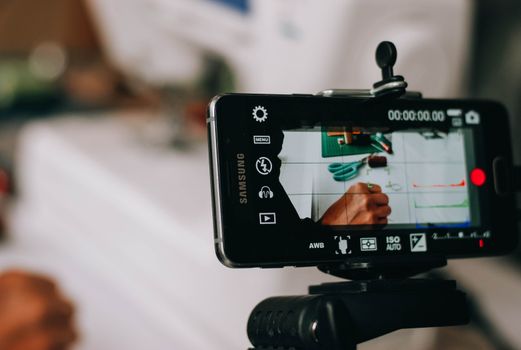
Nothing on the setup checklist requires gear. A smartphone records and uploads, which is why so many channels begin on one. Cameras and microphones improve how your videos look and sound, and they matter more as your standards rise, but buying them before you have published anything usually delays the part that actually teaches you something.
A reasonable sequence is to publish with what you own, notice what limits you, and buy for that specific limit. Audio problems tend to be more noticeable to viewers than image quality, so a microphone is often the first upgrade worth considering. Verify current product details and prices with retailers rather than relying on any general guide, since those change constantly.
Frequently Asked Questions
Do I need a Google Account to start a YouTube channel?
Yes. You sign in to YouTube using a Google Account, and the channel is created from there through your profile picture and Settings. You can watch, like, and subscribe with just the Google Account, but uploading, commenting, and creating playlists require an actual channel. Without one, you have no public presence on YouTube.
Can I create another YouTube channel if I already have one?
YouTube’s Settings menu includes an option labeled Add or manage channel(s), and the Create a channel action lives there. That wording indicates you can manage more than one channel from the same account. Details around limits and how additional channels behave can change, so confirm current rules in YouTube Help before building out a second presence.
How much does it cost to start a YouTube channel?
Creating the channel itself costs nothing. A 2026 beginner’s guide describes starting as free, noting that basic equipment such as cameras and microphones may be needed to produce quality videos. You can begin with only a smartphone if you already own one. Treat costs as variable and check current prices with sellers directly.
What equipment do I need for my first video?
A device that records and uploads is the only requirement, and a smartphone works. Cameras and microphones improve production quality, but neither is needed to create the channel or publish. Many creators start on a phone, learn what actually limits their videos, and upgrade that specific piece afterward rather than buying everything up front.
What should I decide before uploading?
Most guides treat the planning work as separate from the technical setup: choose a topic or niche, define your audience, set channel goals, create a schedule, and develop channel branding. Creator advice adds a strong preference for one audience and one theme rather than a mixed channel. None of these are permanent, but having them settled makes the first upload much easier.